> ## Documentation Index
> Fetch the complete documentation index at: https://docs-staging-chore-management-api-autoupdate.mintlify.site/llms.txt
> Use this file to discover all available pages before exploring further.

> Découvrez comment configurer un formulaire de mise à jour de politique à l’aide de Forms for Actions afin que les utilisateurs puissent examiner et accepter de nouvelles conditions d’utilisation ou des mises à jour de consentement.

# Cas d’utilisation : Configurer un formulaire de mise à jour de politique à l’aide de Forms

<Card title="Avant de commencer">
  1. Créez une [application Machine-to-Machine](/docs/fr-ca/get-started/auth0-overview/create-applications/machine-to-machine-apps) avec les scopes suivants activés :

  * `read:users`
  * `update:users`
  * `create:users`
  * `read:users_app_metadata`
  * `update:users_app_metadata`
  * `create:users_app_metadata`

  2. Ajoutez une [connexion Vault](/docs/fr-ca/customize/forms/vault) à l’aide des identifiants de l’application M2M.
</Card>

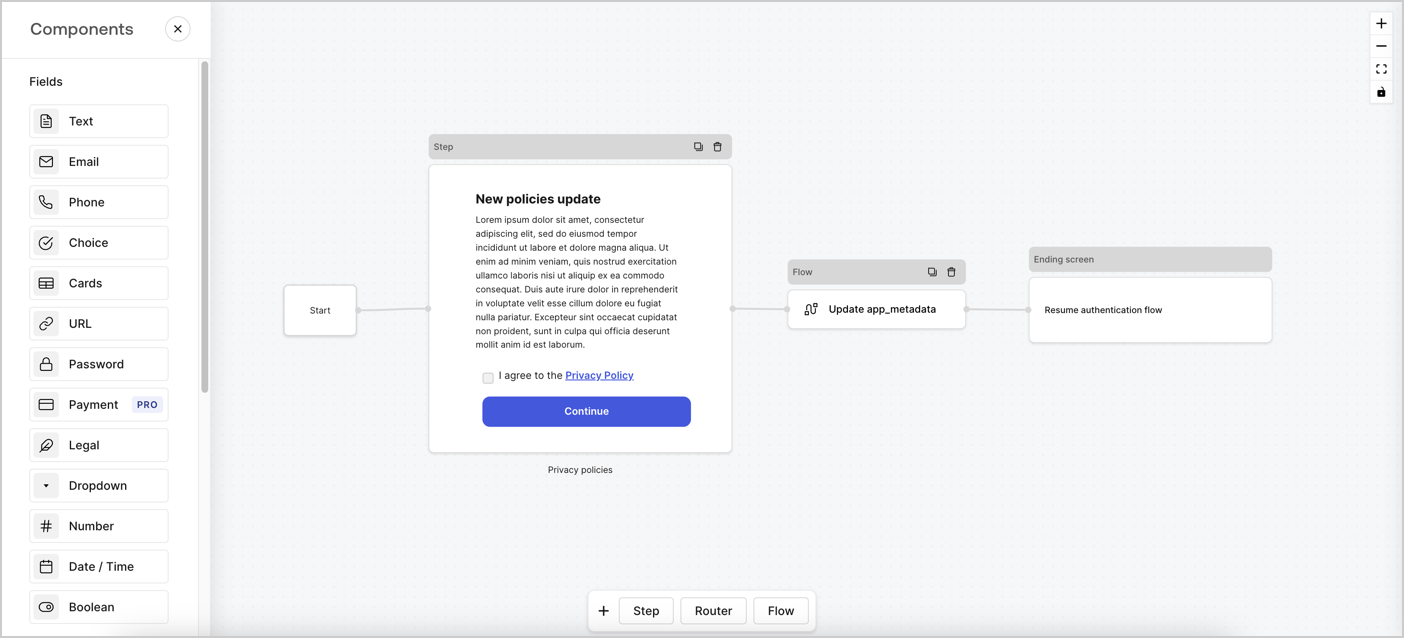
Forms for Actions vous permet de créer des flux personnalisés liés aux politiques de confidentialité et d’enregistrer le consentement dans l’objet `app_metadata`.
<Frame>
  <img src="https://mintcdn.com/docs-staging-chore-management-api-autoupdate/oiDO-PkIrC6oywTQ/docs/images/cdy7uua7fh8z/6i68dMvHDTijfRmSgN1x8Q/ad900e7d4c0fb34645921435472b8684/privavy-policy-form.png?fit=max&auto=format&n=oiDO-PkIrC6oywTQ&q=85&s=b6bc65d1fa67ab23845bef07c4598294" alt="Dashboard > Actions > Forms > Cas d’utilisation de politique de confidentialité" data-og-width="1404" width="1404" data-og-height="638" height="638" data-path="docs/images/cdy7uua7fh8z/6i68dMvHDTijfRmSgN1x8Q/ad900e7d4c0fb34645921435472b8684/privavy-policy-form.png" data-optimize="true" data-opv="3" srcset="https://mintcdn.com/docs-staging-chore-management-api-autoupdate/oiDO-PkIrC6oywTQ/docs/images/cdy7uua7fh8z/6i68dMvHDTijfRmSgN1x8Q/ad900e7d4c0fb34645921435472b8684/privavy-policy-form.png?w=280&fit=max&auto=format&n=oiDO-PkIrC6oywTQ&q=85&s=4694df987bd1ac05c3cb6806ed0af039 280w, https://mintcdn.com/docs-staging-chore-management-api-autoupdate/oiDO-PkIrC6oywTQ/docs/images/cdy7uua7fh8z/6i68dMvHDTijfRmSgN1x8Q/ad900e7d4c0fb34645921435472b8684/privavy-policy-form.png?w=560&fit=max&auto=format&n=oiDO-PkIrC6oywTQ&q=85&s=de92bb6c5105359c6a95823ec6c2f88e 560w, https://mintcdn.com/docs-staging-chore-management-api-autoupdate/oiDO-PkIrC6oywTQ/docs/images/cdy7uua7fh8z/6i68dMvHDTijfRmSgN1x8Q/ad900e7d4c0fb34645921435472b8684/privavy-policy-form.png?w=840&fit=max&auto=format&n=oiDO-PkIrC6oywTQ&q=85&s=05bdb298dc57a3f5dbde5579f6654588 840w, https://mintcdn.com/docs-staging-chore-management-api-autoupdate/oiDO-PkIrC6oywTQ/docs/images/cdy7uua7fh8z/6i68dMvHDTijfRmSgN1x8Q/ad900e7d4c0fb34645921435472b8684/privavy-policy-form.png?w=1100&fit=max&auto=format&n=oiDO-PkIrC6oywTQ&q=85&s=50cf010da400eef1aaeb6f687af1e459 1100w, https://mintcdn.com/docs-staging-chore-management-api-autoupdate/oiDO-PkIrC6oywTQ/docs/images/cdy7uua7fh8z/6i68dMvHDTijfRmSgN1x8Q/ad900e7d4c0fb34645921435472b8684/privavy-policy-form.png?w=1650&fit=max&auto=format&n=oiDO-PkIrC6oywTQ&q=85&s=1bedece2be991320d61c7179c1974324 1650w, https://mintcdn.com/docs-staging-chore-management-api-autoupdate/oiDO-PkIrC6oywTQ/docs/images/cdy7uua7fh8z/6i68dMvHDTijfRmSgN1x8Q/ad900e7d4c0fb34645921435472b8684/privavy-policy-form.png?w=2500&fit=max&auto=format&n=oiDO-PkIrC6oywTQ&q=85&s=dec032be1ccc63bb860829f41b14fb03 2500w" />
</Frame>

Les sections ci-dessous expliquent comment créer un formulaire de mise à jour de politique à l’aide de nœuds et de flux, ainsi que les étapes pour ajouter votre formulaire à une Action [Post Login](/docs/fr-ca/customize/actions/explore-triggers/signup-and-login-triggers/login-trigger).

<h2 id="create-a-form-from-scratch">
  Créer un formulaire à partir de zéro
</h2>

Suivez ces étapes pour créer un formulaire afin de recueillir des informations :

1. Ouvrez l’éditeur de formulaires en sélectionnant **Auth0 Dashboard > Actions > Forms.**
2. Sélectionnez **Create Form** > **Start from scratch**.

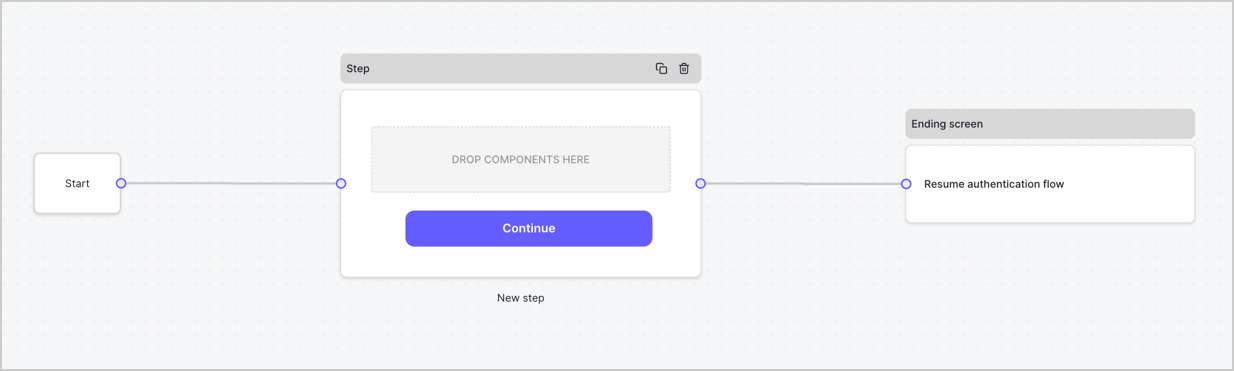
Par défaut, un nouveau formulaire contient un nœud Start, un nœud Step et un nœud Ending screen.
<Frame>
  <img src="https://mintcdn.com/docs-staging-chore-management-api-autoupdate/5OH5qupGbDGigNkI/docs/images/cdy7uua7fh8z/2TZ9jSjgEcARFpULI6hz4R/a4319a1bd482f2ee5cc23100fdb2f42c/New-form-Forms-for-action-use-case.png?fit=max&auto=format&n=5OH5qupGbDGigNkI&q=85&s=52ee07c6be793b8e3957427b4c06a70d" alt="Dashboard > Forms > Use Cases > Form" data-og-width="1234" width="1234" data-og-height="371" height="371" data-path="docs/images/cdy7uua7fh8z/2TZ9jSjgEcARFpULI6hz4R/a4319a1bd482f2ee5cc23100fdb2f42c/New-form-Forms-for-action-use-case.png" data-optimize="true" data-opv="3" srcset="https://mintcdn.com/docs-staging-chore-management-api-autoupdate/5OH5qupGbDGigNkI/docs/images/cdy7uua7fh8z/2TZ9jSjgEcARFpULI6hz4R/a4319a1bd482f2ee5cc23100fdb2f42c/New-form-Forms-for-action-use-case.png?w=280&fit=max&auto=format&n=5OH5qupGbDGigNkI&q=85&s=c0e17107ac26ba6b92f7201dfbe34849 280w, https://mintcdn.com/docs-staging-chore-management-api-autoupdate/5OH5qupGbDGigNkI/docs/images/cdy7uua7fh8z/2TZ9jSjgEcARFpULI6hz4R/a4319a1bd482f2ee5cc23100fdb2f42c/New-form-Forms-for-action-use-case.png?w=560&fit=max&auto=format&n=5OH5qupGbDGigNkI&q=85&s=1ee8bf336acc45435e8780b5a515ebc5 560w, https://mintcdn.com/docs-staging-chore-management-api-autoupdate/5OH5qupGbDGigNkI/docs/images/cdy7uua7fh8z/2TZ9jSjgEcARFpULI6hz4R/a4319a1bd482f2ee5cc23100fdb2f42c/New-form-Forms-for-action-use-case.png?w=840&fit=max&auto=format&n=5OH5qupGbDGigNkI&q=85&s=abff23856df4920ddb687d97ad3722e6 840w, https://mintcdn.com/docs-staging-chore-management-api-autoupdate/5OH5qupGbDGigNkI/docs/images/cdy7uua7fh8z/2TZ9jSjgEcARFpULI6hz4R/a4319a1bd482f2ee5cc23100fdb2f42c/New-form-Forms-for-action-use-case.png?w=1100&fit=max&auto=format&n=5OH5qupGbDGigNkI&q=85&s=50b4052411d782feb91aab139f756af3 1100w, https://mintcdn.com/docs-staging-chore-management-api-autoupdate/5OH5qupGbDGigNkI/docs/images/cdy7uua7fh8z/2TZ9jSjgEcARFpULI6hz4R/a4319a1bd482f2ee5cc23100fdb2f42c/New-form-Forms-for-action-use-case.png?w=1650&fit=max&auto=format&n=5OH5qupGbDGigNkI&q=85&s=076022785762532eb39e28b1df3013b0 1650w, https://mintcdn.com/docs-staging-chore-management-api-autoupdate/5OH5qupGbDGigNkI/docs/images/cdy7uua7fh8z/2TZ9jSjgEcARFpULI6hz4R/a4319a1bd482f2ee5cc23100fdb2f42c/New-form-Forms-for-action-use-case.png?w=2500&fit=max&auto=format&n=5OH5qupGbDGigNkI&q=85&s=bb75874f6bd35e2bb7c9b62a5f1f3e01 2500w" />
</Frame>

<h3 id="configure-the-step-node">
  Configurer le nœud Step
</h3>

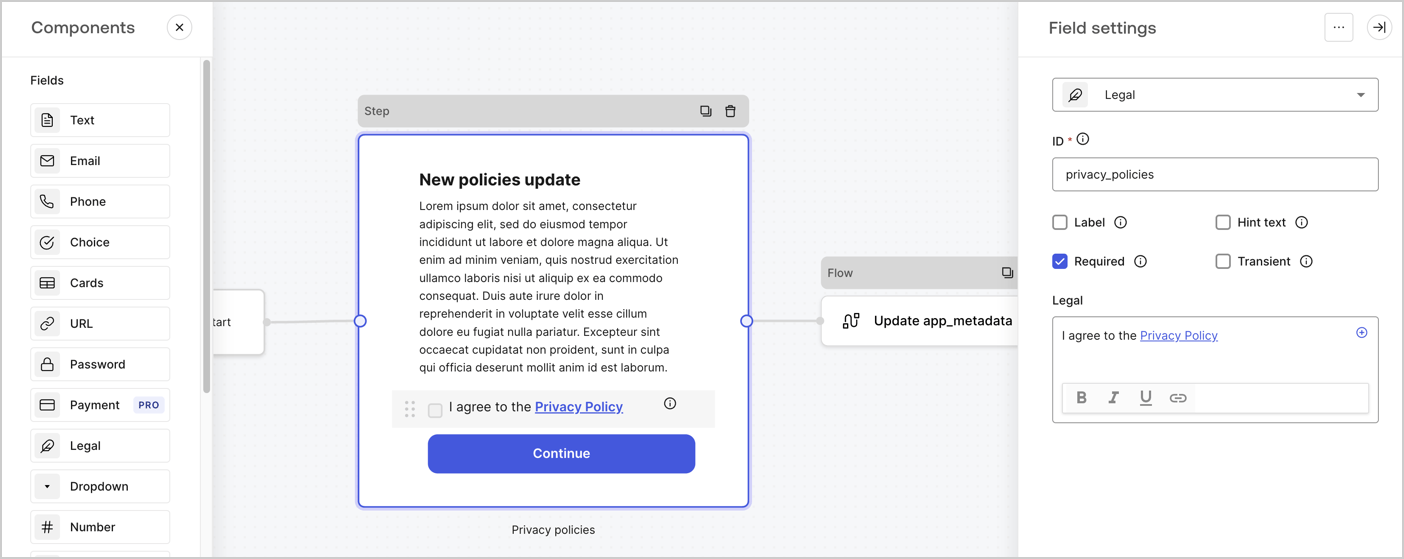
Le nœud Step est l’interface graphique visible par les utilisateurs. Ajoutez des [champs](/docs/fr-ca/customize/forms/nodes-and-components) au nœud Step pour recueillir la nouvelle valeur d’acceptation en suivant ces étapes :

1. Faites glisser un champ **Texte enrichi** du **menu Composants** vers le nœud **Step**.

   * **Texte enrichi** : Saisissez une description des mises à jour apportées à votre politique de confidentialité.
   * Sélectionnez **Enregistrer**.
2. Faites glisser un champ **Juridique** vers le nœud **Step**.

   * **ID** : Saisissez `privacy_policies`.
   * **Obligatoire** : Cochez la case.
   * **Juridique** : Saisissez `J’accepte la politique de confidentialité`.
   * Sélectionnez **Enregistrer**.
3. Sélectionnez **Publier** pour enregistrer.
<Frame>
  <img src="https://mintcdn.com/docs-staging-chore-management-api-autoupdate/uxaWpNuZEjMCtl4x/docs/images/cdy7uua7fh8z/59zFFjQjAnjogkc2QGIqqJ/0ad66b1b636544122aa4e65968b76c2c/privacy-policy-step-node.png?fit=max&auto=format&n=uxaWpNuZEjMCtl4x&q=85&s=5e8ecec1c5bff6f4d5e550708a47c7a1" alt="Dashboard > Actions > Forms > Cas d’utilisation du nœud Step de la politique de confidentialité" data-og-width="1404" width="1404" data-og-height="559" height="559" data-path="docs/images/cdy7uua7fh8z/59zFFjQjAnjogkc2QGIqqJ/0ad66b1b636544122aa4e65968b76c2c/privacy-policy-step-node.png" data-optimize="true" data-opv="3" srcset="https://mintcdn.com/docs-staging-chore-management-api-autoupdate/uxaWpNuZEjMCtl4x/docs/images/cdy7uua7fh8z/59zFFjQjAnjogkc2QGIqqJ/0ad66b1b636544122aa4e65968b76c2c/privacy-policy-step-node.png?w=280&fit=max&auto=format&n=uxaWpNuZEjMCtl4x&q=85&s=2168e5579c56dae976b03ee15cbe0458 280w, https://mintcdn.com/docs-staging-chore-management-api-autoupdate/uxaWpNuZEjMCtl4x/docs/images/cdy7uua7fh8z/59zFFjQjAnjogkc2QGIqqJ/0ad66b1b636544122aa4e65968b76c2c/privacy-policy-step-node.png?w=560&fit=max&auto=format&n=uxaWpNuZEjMCtl4x&q=85&s=0aa5ee5db178ea0f45a5cf974ba418c8 560w, https://mintcdn.com/docs-staging-chore-management-api-autoupdate/uxaWpNuZEjMCtl4x/docs/images/cdy7uua7fh8z/59zFFjQjAnjogkc2QGIqqJ/0ad66b1b636544122aa4e65968b76c2c/privacy-policy-step-node.png?w=840&fit=max&auto=format&n=uxaWpNuZEjMCtl4x&q=85&s=abbacf98f2bbcb70dc3a39876fb34ba8 840w, https://mintcdn.com/docs-staging-chore-management-api-autoupdate/uxaWpNuZEjMCtl4x/docs/images/cdy7uua7fh8z/59zFFjQjAnjogkc2QGIqqJ/0ad66b1b636544122aa4e65968b76c2c/privacy-policy-step-node.png?w=1100&fit=max&auto=format&n=uxaWpNuZEjMCtl4x&q=85&s=0b49204aaa8e1daed577fced41d9862d 1100w, https://mintcdn.com/docs-staging-chore-management-api-autoupdate/uxaWpNuZEjMCtl4x/docs/images/cdy7uua7fh8z/59zFFjQjAnjogkc2QGIqqJ/0ad66b1b636544122aa4e65968b76c2c/privacy-policy-step-node.png?w=1650&fit=max&auto=format&n=uxaWpNuZEjMCtl4x&q=85&s=53584aead606546989afd7b1de15a355 1650w, https://mintcdn.com/docs-staging-chore-management-api-autoupdate/uxaWpNuZEjMCtl4x/docs/images/cdy7uua7fh8z/59zFFjQjAnjogkc2QGIqqJ/0ad66b1b636544122aa4e65968b76c2c/privacy-policy-step-node.png?w=2500&fit=max&auto=format&n=uxaWpNuZEjMCtl4x&q=85&s=a01c132d1086626ae4646bec04ca6b56 2500w" />
</Frame>

<h3 id="configure-the-flow-node">
  Configurer le nœud **Flow**
</h3>

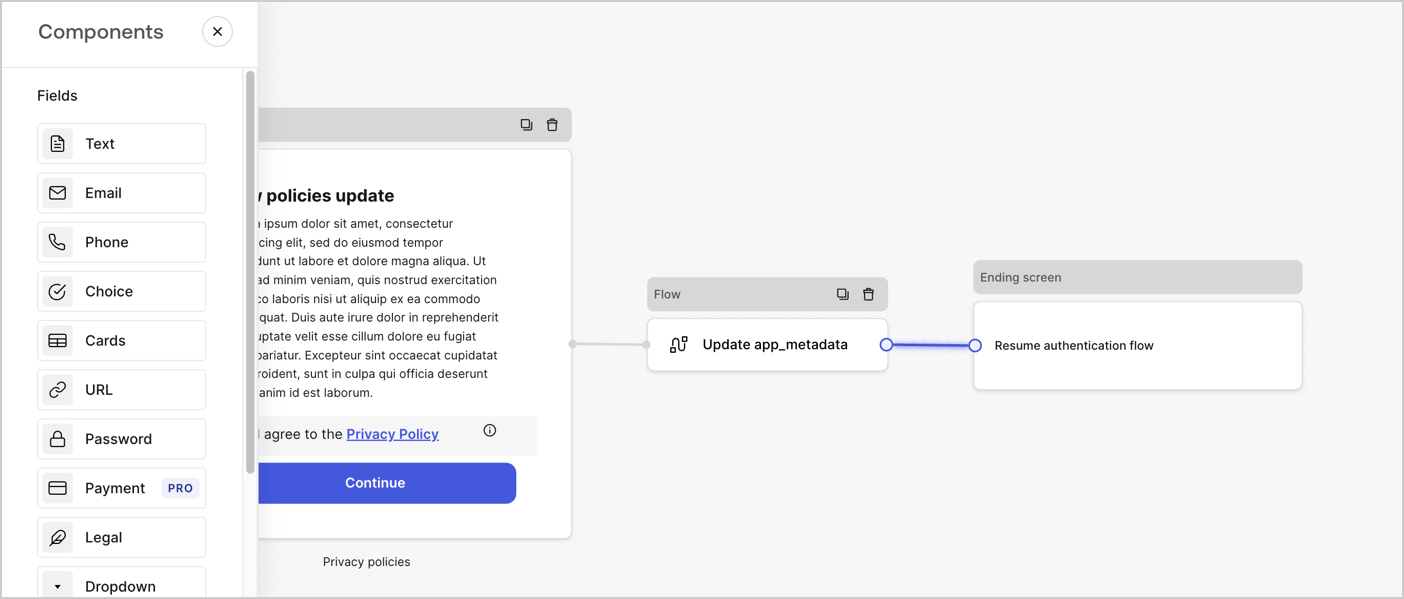
Ajoutez un nœud **Flow** après le nœud **Step** pour mettre à jour `app_metadata` et reprendre le flux d’authentification en suivant les étapes ci-dessous :

1. Sélectionnez **Flow** au bas de l’éditeur de formulaires.
2. Supprimez le lien existant entre les nœuds **Step** et **Ending Screen**.
3. Sélectionnez le nouveau **Flow** > **Click to add a flow** > **Create a new flow.**

   * Entrez `Update app_metadata` dans le champ **Name**.
   * Sélectionnez **Create**.
   * Sélectionnez **Save**.
4. Reliez le nœud **Flow** aux nœuds **Step** et **Ending Screen**, comme illustré ci-dessous.
5. Sélectionnez **Publish** pour enregistrer.
<Frame>
  <img src="https://mintcdn.com/docs-staging-chore-management-api-autoupdate/oiDO-PkIrC6oywTQ/docs/images/cdy7uua7fh8z/6YIkzm7SrpM9LW76AXuRzh/353c518fe82bbaa440836da1d83596d6/link-policies.png?fit=max&auto=format&n=oiDO-PkIrC6oywTQ&q=85&s=bb3cc3b62ecb0f62c41999c098476098" alt="Dashboard > Actions > Forms > Form" data-og-width="1404" width="1404" data-og-height="599" height="599" data-path="docs/images/cdy7uua7fh8z/6YIkzm7SrpM9LW76AXuRzh/353c518fe82bbaa440836da1d83596d6/link-policies.png" data-optimize="true" data-opv="3" srcset="https://mintcdn.com/docs-staging-chore-management-api-autoupdate/oiDO-PkIrC6oywTQ/docs/images/cdy7uua7fh8z/6YIkzm7SrpM9LW76AXuRzh/353c518fe82bbaa440836da1d83596d6/link-policies.png?w=280&fit=max&auto=format&n=oiDO-PkIrC6oywTQ&q=85&s=e90088312fa8a99e0afa57a4bf5bb615 280w, https://mintcdn.com/docs-staging-chore-management-api-autoupdate/oiDO-PkIrC6oywTQ/docs/images/cdy7uua7fh8z/6YIkzm7SrpM9LW76AXuRzh/353c518fe82bbaa440836da1d83596d6/link-policies.png?w=560&fit=max&auto=format&n=oiDO-PkIrC6oywTQ&q=85&s=bb944838928b127925b623e2d42c14ef 560w, https://mintcdn.com/docs-staging-chore-management-api-autoupdate/oiDO-PkIrC6oywTQ/docs/images/cdy7uua7fh8z/6YIkzm7SrpM9LW76AXuRzh/353c518fe82bbaa440836da1d83596d6/link-policies.png?w=840&fit=max&auto=format&n=oiDO-PkIrC6oywTQ&q=85&s=9c40f1359850102a89c53bd0070e46ce 840w, https://mintcdn.com/docs-staging-chore-management-api-autoupdate/oiDO-PkIrC6oywTQ/docs/images/cdy7uua7fh8z/6YIkzm7SrpM9LW76AXuRzh/353c518fe82bbaa440836da1d83596d6/link-policies.png?w=1100&fit=max&auto=format&n=oiDO-PkIrC6oywTQ&q=85&s=4d1645049cae084f852b5d51a13fc6e8 1100w, https://mintcdn.com/docs-staging-chore-management-api-autoupdate/oiDO-PkIrC6oywTQ/docs/images/cdy7uua7fh8z/6YIkzm7SrpM9LW76AXuRzh/353c518fe82bbaa440836da1d83596d6/link-policies.png?w=1650&fit=max&auto=format&n=oiDO-PkIrC6oywTQ&q=85&s=a1ebcbe6f699479fbc2c86f1d032a842 1650w, https://mintcdn.com/docs-staging-chore-management-api-autoupdate/oiDO-PkIrC6oywTQ/docs/images/cdy7uua7fh8z/6YIkzm7SrpM9LW76AXuRzh/353c518fe82bbaa440836da1d83596d6/link-policies.png?w=2500&fit=max&auto=format&n=oiDO-PkIrC6oywTQ&q=85&s=d8bb61de5f96e675e78ded3b7751d005 2500w" />
</Frame>

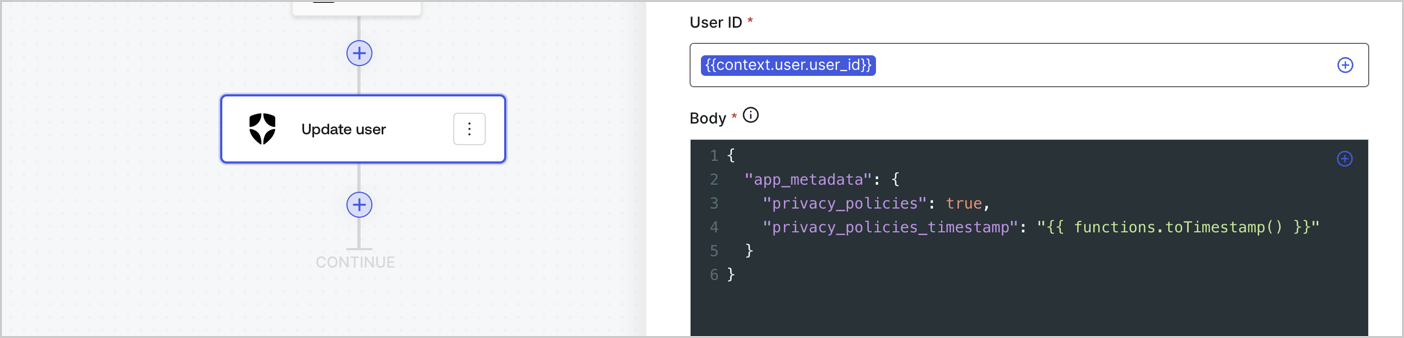
Ajoutez une action Auth0 **Update user** au flux en suivant les étapes ci-dessous :

1. Sélectionnez **Flow** **Update app\_metadata** > **Edit flow** pour ouvrir l’éditeur de flux dans un nouvel onglet.
2. Sous le StartAction, sélectionnez l’icône **+** pour ajouter une action **Update user**. Remplissez les champs ci-dessous, puis sélectionnez **Save** pour continuer.

   * **Connection** : Dans la liste déroulante, sélectionnez la connexion Vault de votre application M2M.

   * **User ID** : Entrez `{{context.user.user_id}}`.

   * **Body** : Copiez-collez le code suivant pour mettre à jour `app_metadata` avec les propriétés `privacy_policies` et `privacy_policies_timestamp`.

     ```text lines theme={null}
     {
       "app_metadata": {
         "privacy_policies": true,
         "privacy_policies_timestamp": "{{ functions.toTimestamp() }}"
       }
     }
     ```

   * Sélectionnez **Save**.
3. Sélectionnez **Publish** pour enregistrer.
<Frame>
  <img src="https://mintcdn.com/docs-staging-chore-management-api-autoupdate/QLz_5h5hh6UlDAQ8/docs/images/cdy7uua7fh8z/CvMNIwWrOUwaFW4X3G28p/1fb70ae57a20749d9ffaaba8dc0b7e26/update-user-privacy.png?fit=max&auto=format&n=QLz_5h5hh6UlDAQ8&q=85&s=4cfcdcefe27fc753ca9fab05b6bf0a70" alt="Dashboard > Actions > Forms > User case privacy policy code" data-og-width="1404" width="1404" data-og-height="338" height="338" data-path="docs/images/cdy7uua7fh8z/CvMNIwWrOUwaFW4X3G28p/1fb70ae57a20749d9ffaaba8dc0b7e26/update-user-privacy.png" data-optimize="true" data-opv="3" srcset="https://mintcdn.com/docs-staging-chore-management-api-autoupdate/QLz_5h5hh6UlDAQ8/docs/images/cdy7uua7fh8z/CvMNIwWrOUwaFW4X3G28p/1fb70ae57a20749d9ffaaba8dc0b7e26/update-user-privacy.png?w=280&fit=max&auto=format&n=QLz_5h5hh6UlDAQ8&q=85&s=6e29f3a830cd21dcce3e6db7265dbce6 280w, https://mintcdn.com/docs-staging-chore-management-api-autoupdate/QLz_5h5hh6UlDAQ8/docs/images/cdy7uua7fh8z/CvMNIwWrOUwaFW4X3G28p/1fb70ae57a20749d9ffaaba8dc0b7e26/update-user-privacy.png?w=560&fit=max&auto=format&n=QLz_5h5hh6UlDAQ8&q=85&s=1d67a05388d67e16e00609708b2e16dd 560w, https://mintcdn.com/docs-staging-chore-management-api-autoupdate/QLz_5h5hh6UlDAQ8/docs/images/cdy7uua7fh8z/CvMNIwWrOUwaFW4X3G28p/1fb70ae57a20749d9ffaaba8dc0b7e26/update-user-privacy.png?w=840&fit=max&auto=format&n=QLz_5h5hh6UlDAQ8&q=85&s=843d1a1157ae6f723e8a888ffee4496c 840w, https://mintcdn.com/docs-staging-chore-management-api-autoupdate/QLz_5h5hh6UlDAQ8/docs/images/cdy7uua7fh8z/CvMNIwWrOUwaFW4X3G28p/1fb70ae57a20749d9ffaaba8dc0b7e26/update-user-privacy.png?w=1100&fit=max&auto=format&n=QLz_5h5hh6UlDAQ8&q=85&s=ffc81a11fc01a08165d698f94b8ed061 1100w, https://mintcdn.com/docs-staging-chore-management-api-autoupdate/QLz_5h5hh6UlDAQ8/docs/images/cdy7uua7fh8z/CvMNIwWrOUwaFW4X3G28p/1fb70ae57a20749d9ffaaba8dc0b7e26/update-user-privacy.png?w=1650&fit=max&auto=format&n=QLz_5h5hh6UlDAQ8&q=85&s=06d0ddd33c8eba44e26f1b17783bfb75 1650w, https://mintcdn.com/docs-staging-chore-management-api-autoupdate/QLz_5h5hh6UlDAQ8/docs/images/cdy7uua7fh8z/CvMNIwWrOUwaFW4X3G28p/1fb70ae57a20749d9ffaaba8dc0b7e26/update-user-privacy.png?w=2500&fit=max&auto=format&n=QLz_5h5hh6UlDAQ8&q=85&s=39705a44af3bc6daead42d24b4ee0b6d 2500w" />
</Frame>

<Callout icon="file-lines" color="#0EA5E9" iconType="regular">
  Le flux **Update app\_metadata** ajoute la valeur `privacy_policies true` à l’objet `app_metadata` et génère aussi un horodatage à l’aide d’une [fonction utilitaire.](/docs/fr-ca/customize/forms/variables)
</Callout>

<h2 id="retrieve-the-form-render-code">
  Récupérer le code de rendu du formulaire
</h2>

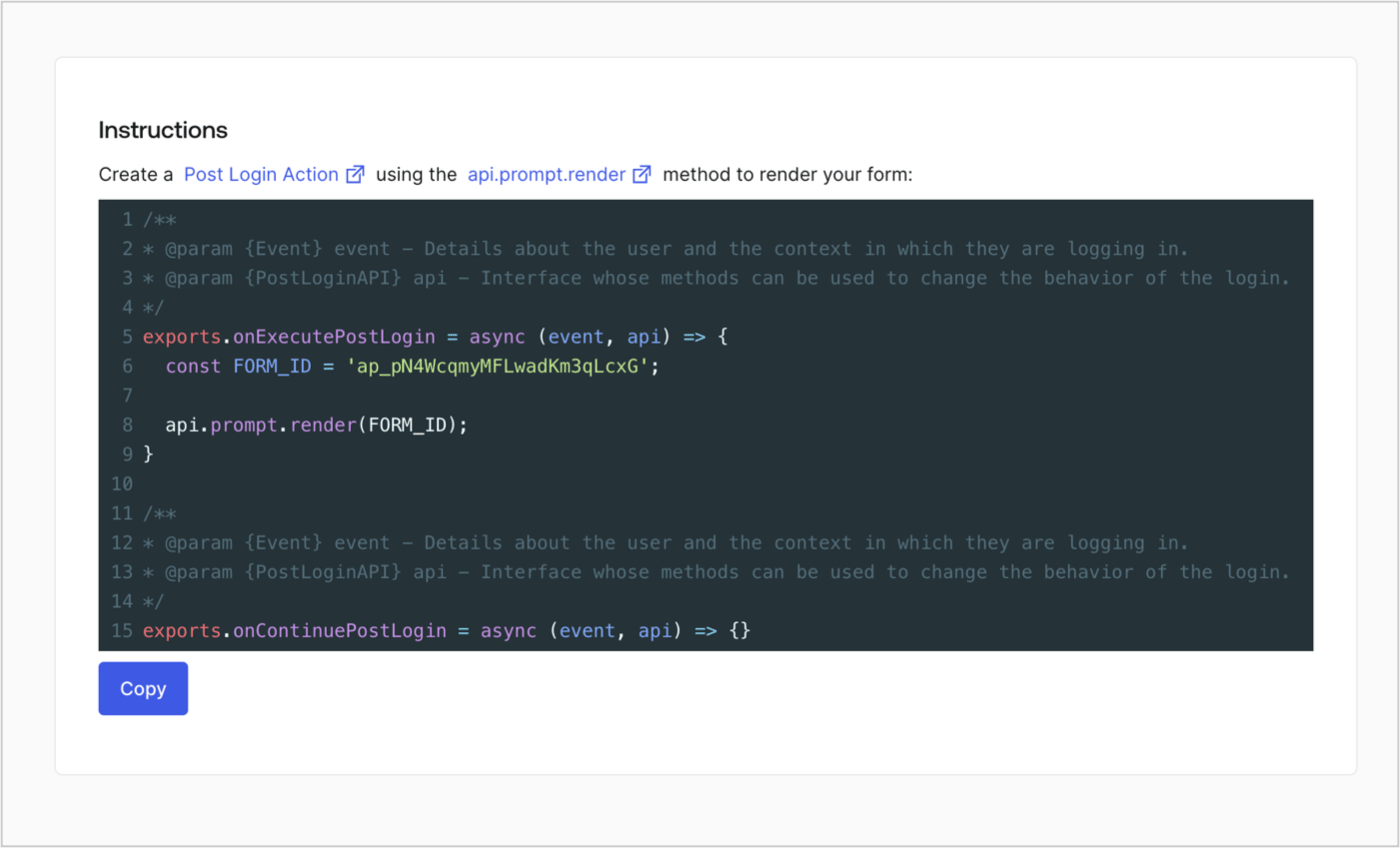
Récupérez le code de rendu de votre formulaire afin d’afficher le formulaire au moyen d’une Action Post Login personnalisée en suivant ces étapes :

* Dans l’éditeur de formulaires, sélectionnez **`<> Render`**.
* Sélectionnez **Copy**.
<Frame>
  <img src="https://mintcdn.com/docs-staging-chore-management-api-autoupdate/oVD85MvA7ZVayXF0/docs/images/cdy7uua7fh8z/2EIUzc539sq9lwoTKbjoJv/496a864c0fc44a782c9cadca119dbfb0/embed.png?fit=max&auto=format&n=oVD85MvA7ZVayXF0&q=85&s=23db17feff5783488b80b783cd37bc1e" alt="Dashboard > Actions > Forms > Form > Embed" data-og-width="1400" width="1400" data-og-height="848" height="848" data-path="docs/images/cdy7uua7fh8z/2EIUzc539sq9lwoTKbjoJv/496a864c0fc44a782c9cadca119dbfb0/embed.png" data-optimize="true" data-opv="3" srcset="https://mintcdn.com/docs-staging-chore-management-api-autoupdate/oVD85MvA7ZVayXF0/docs/images/cdy7uua7fh8z/2EIUzc539sq9lwoTKbjoJv/496a864c0fc44a782c9cadca119dbfb0/embed.png?w=280&fit=max&auto=format&n=oVD85MvA7ZVayXF0&q=85&s=88af01e18dfda65e15c8eb68c011f272 280w, https://mintcdn.com/docs-staging-chore-management-api-autoupdate/oVD85MvA7ZVayXF0/docs/images/cdy7uua7fh8z/2EIUzc539sq9lwoTKbjoJv/496a864c0fc44a782c9cadca119dbfb0/embed.png?w=560&fit=max&auto=format&n=oVD85MvA7ZVayXF0&q=85&s=e8f06dfd4ffc9450f98542b62a8888d9 560w, https://mintcdn.com/docs-staging-chore-management-api-autoupdate/oVD85MvA7ZVayXF0/docs/images/cdy7uua7fh8z/2EIUzc539sq9lwoTKbjoJv/496a864c0fc44a782c9cadca119dbfb0/embed.png?w=840&fit=max&auto=format&n=oVD85MvA7ZVayXF0&q=85&s=14e3d15cd1189eabb74dfbf256ed2a22 840w, https://mintcdn.com/docs-staging-chore-management-api-autoupdate/oVD85MvA7ZVayXF0/docs/images/cdy7uua7fh8z/2EIUzc539sq9lwoTKbjoJv/496a864c0fc44a782c9cadca119dbfb0/embed.png?w=1100&fit=max&auto=format&n=oVD85MvA7ZVayXF0&q=85&s=54814b0bcc88702b3dd22c1c6e7973fa 1100w, https://mintcdn.com/docs-staging-chore-management-api-autoupdate/oVD85MvA7ZVayXF0/docs/images/cdy7uua7fh8z/2EIUzc539sq9lwoTKbjoJv/496a864c0fc44a782c9cadca119dbfb0/embed.png?w=1650&fit=max&auto=format&n=oVD85MvA7ZVayXF0&q=85&s=45e97eff68fb5e1188c8b64d86b91e10 1650w, https://mintcdn.com/docs-staging-chore-management-api-autoupdate/oVD85MvA7ZVayXF0/docs/images/cdy7uua7fh8z/2EIUzc539sq9lwoTKbjoJv/496a864c0fc44a782c9cadca119dbfb0/embed.png?w=2500&fit=max&auto=format&n=oVD85MvA7ZVayXF0&q=85&s=78ba3303d36d196439c571f270cdd8b9 2500w" />
</Frame>

<h2 id="create-a-post-login-action">
  Créer une Action Post Login
</h2>

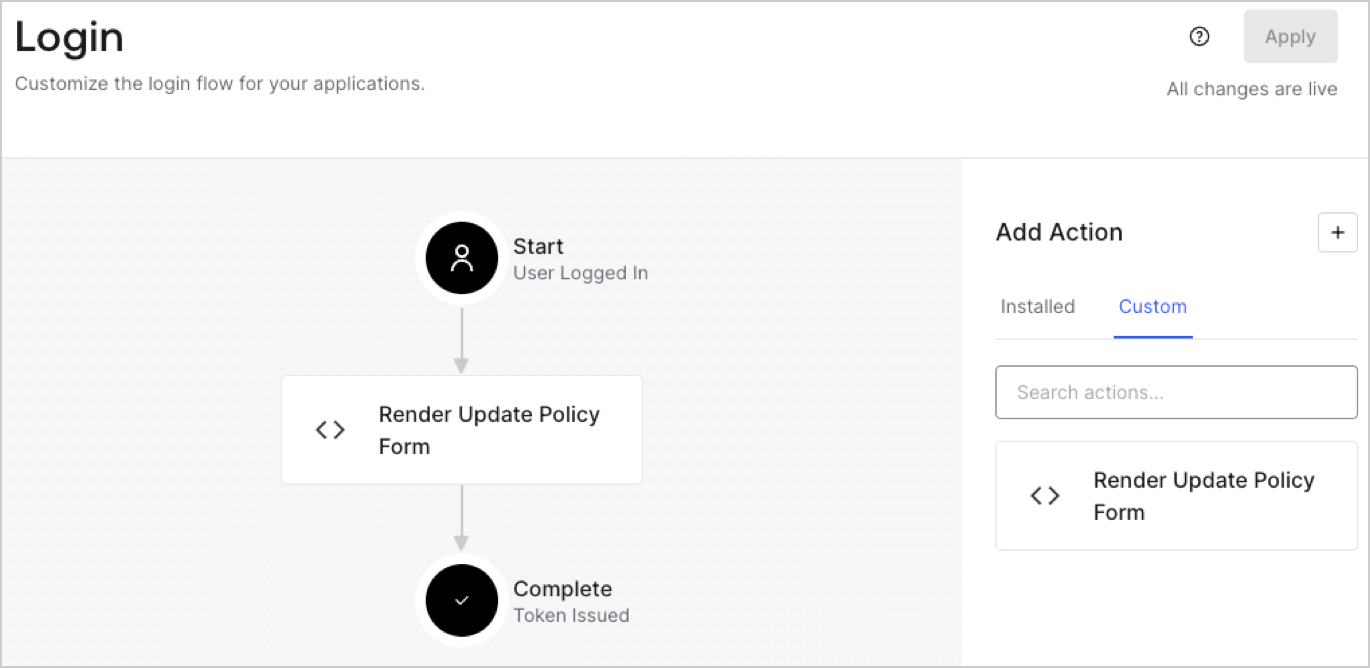
Créez une action post-login pour afficher votre formulaire en suivant les étapes ci-dessous :

1. Accédez à **Auth0 Dashboard > Actions > Flows > Login.**
2. Sélectionnez l’icône **+**, puis **Build from scratch** :

   * **Nom** : Entrez `Render Update Policy Form`.
   * **Déclencheur** : Sélectionnez `Login / Post Login`.
   * **Runtime** : Sélectionnez la version recommandée.
3. Sélectionnez **Créer**.

Pour configurer l’action post-login :

1. Supprimez le code existant dans l’éditeur de code.
2. Collez le code de rendu du formulaire dans l’éditeur de code.
3. Modifiez le code pour définir la logique conditionnelle qui affichera le formulaire.

   ```javascript lines theme={null}
   /**
   * @param {Event} event - Détails sur l’utilisateur et le contexte dans lequel il se connecte.
   * @param {PostLoginAPI} api - Interface dont les méthodes peuvent être utilisées pour modifier le comportement de la connexion.
   */
   exports.onExecutePostLogin = async (event, api) => {
     const FORM_ID = 'REPLACE_WITH_YOUR_FORM_ID';

     if (event.user.app_metadata.privacy_policies !== true) {
       api.prompt.render(FORM_ID);
     }
   }

   exports.onContinuePostLogin = async (event, api) => { }
   ```

   <Callout icon="file-lines" color="#0EA5E9" iconType="regular">
     L’exemple de code ci-dessus affichera le formulaire si la propriété `privacy_policies` est absente de l’objet app metadata de l’utilisateur.
   </Callout>
4. Sélectionnez **Déployer**.
5. Glissez-déposez l’Action **Render Update Policy Form** dans le flux de **Login**.
   <Frame>
     <img src="https://mintcdn.com/docs-staging-chore-management-api-autoupdate/Hlj5AELI6oQmnetW/docs/images/cdy7uua7fh8z/5TOwDgevZsBqd7yZynUYWU/41ca909dc3007aed4f40ff794a05efa5/postlogin.png?fit=max&auto=format&n=Hlj5AELI6oQmnetW&q=85&s=d98e7703013038cd0a086042a85867dd" alt="Dashboard > Forms > cas d’utilisation > action de connexion pour afficher le formulaire de mise à jour de la politique" data-og-width="1370" width="1370" data-og-height="668" height="668" data-path="docs/images/cdy7uua7fh8z/5TOwDgevZsBqd7yZynUYWU/41ca909dc3007aed4f40ff794a05efa5/postlogin.png" data-optimize="true" data-opv="3" srcset="https://mintcdn.com/docs-staging-chore-management-api-autoupdate/Hlj5AELI6oQmnetW/docs/images/cdy7uua7fh8z/5TOwDgevZsBqd7yZynUYWU/41ca909dc3007aed4f40ff794a05efa5/postlogin.png?w=280&fit=max&auto=format&n=Hlj5AELI6oQmnetW&q=85&s=4da7e755072fe765497f9538b11604f7 280w, https://mintcdn.com/docs-staging-chore-management-api-autoupdate/Hlj5AELI6oQmnetW/docs/images/cdy7uua7fh8z/5TOwDgevZsBqd7yZynUYWU/41ca909dc3007aed4f40ff794a05efa5/postlogin.png?w=560&fit=max&auto=format&n=Hlj5AELI6oQmnetW&q=85&s=0a529271c811943eebe742455fc96ae7 560w, https://mintcdn.com/docs-staging-chore-management-api-autoupdate/Hlj5AELI6oQmnetW/docs/images/cdy7uua7fh8z/5TOwDgevZsBqd7yZynUYWU/41ca909dc3007aed4f40ff794a05efa5/postlogin.png?w=840&fit=max&auto=format&n=Hlj5AELI6oQmnetW&q=85&s=d84889d9e8a7d700e1a62425ce8552e3 840w, https://mintcdn.com/docs-staging-chore-management-api-autoupdate/Hlj5AELI6oQmnetW/docs/images/cdy7uua7fh8z/5TOwDgevZsBqd7yZynUYWU/41ca909dc3007aed4f40ff794a05efa5/postlogin.png?w=1100&fit=max&auto=format&n=Hlj5AELI6oQmnetW&q=85&s=1643be8d2ef793aa84d1fde773e7d516 1100w, https://mintcdn.com/docs-staging-chore-management-api-autoupdate/Hlj5AELI6oQmnetW/docs/images/cdy7uua7fh8z/5TOwDgevZsBqd7yZynUYWU/41ca909dc3007aed4f40ff794a05efa5/postlogin.png?w=1650&fit=max&auto=format&n=Hlj5AELI6oQmnetW&q=85&s=9a1fb0919976ea3d6a51e2d6eccf052f 1650w, https://mintcdn.com/docs-staging-chore-management-api-autoupdate/Hlj5AELI6oQmnetW/docs/images/cdy7uua7fh8z/5TOwDgevZsBqd7yZynUYWU/41ca909dc3007aed4f40ff794a05efa5/postlogin.png?w=2500&fit=max&auto=format&n=Hlj5AELI6oQmnetW&q=85&s=30818d47992a5d5f1f08bebe529b74a4 2500w" />
   </Frame>
6. Sélectionnez **Appliquer**.

<h3 id="test-implementation">
  Test de la mise en œuvre
</h3>

Testez la mise en œuvre en suivant ces étapes :

1. Connectez-vous avec un utilisateur existant dont l’attribut app`_metadata` `privacy_policies` n’a aucune valeur.
2. L’Action post-login dans le flux de Login affichera le formulaire et demandera l’acceptation.
3. Sélectionnez **Auth0 Dashboard > User Management > Users,** repérez l’utilisateur et vérifiez que l’attribut `app_metadata` `privacy_policies` contient la valeur `true` ainsi qu’un horodatage.
