> ## Documentation Index
> Fetch the complete documentation index at: https://docs-staging-chore-management-api-autoupdate.mintlify.site/llms.txt
> Use this file to discover all available pages before exploring further.
> Découvrez comment tester les connexions d’entreprise pour les applications à l’aide de l’Auth0 Dashboard.
# Tester les connexions d’entreprise
Vous pouvez tester les connexions d’entreprise pour des applications à l’aide du Dashboard d’Auth0.
Pour effectuer le test correctement, vous devez avoir déjà [configuré votre connexion d’entreprise](/docs/fr-ca/authenticate/identity-providers/enterprise-identity-providers/enable-enterprise-connections).
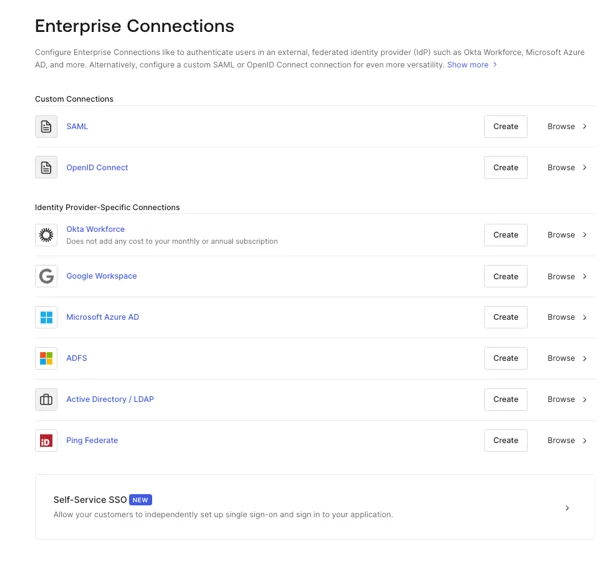
1. Accédez à [Auth0 Dashboard > Authentication > Enterprise](https://manage.auth0.com/#/connections/enterprise), puis sélectionnez le type de connexion à afficher.
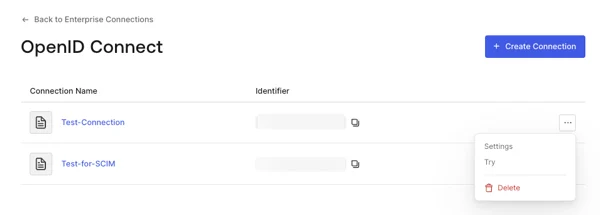
 2. Sélectionnez la flèche **Try** à côté de la connexion que vous souhaitez tester.
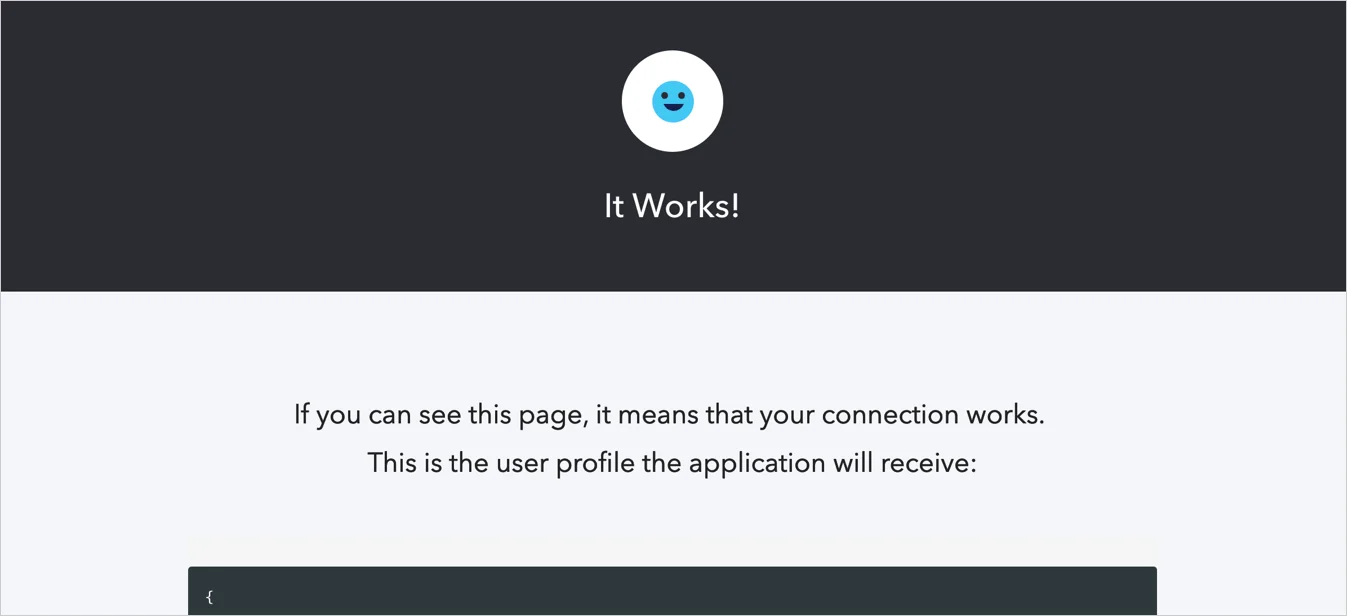
 3. Connectez-vous et accordez votre consentement pour autoriser l’accès à votre application. Si tout est configuré correctement, la page **It Works!** s’affichera.